
|
Book Home Page Bloglines 1906 CelebrateStadium 2006 OfficeZealot Scobleizer TechRepublic AskWoody SpyJournal Computers Software Microsoft Windows Excel FrontPage PowerPoint Outlook Word 

Host your Web site with PureHost! 
|
 
Tuesday, May 08, 2018 – Permalink – Click to TriggerMake it soA trigger is an object on your PowerPoint slide - a picture, a shape, a button, or even a paragraph or text box. When you click on it an action is initiated. The action might be a sound, a movie, an animation, or text becoming visible on the slide. Microsoft Office Online has a tutorial: Use triggers to create an interactive slide show in PowerPoint "Here's a Power User column for teachers. Want to involve your students more in a presentation? Set up "triggers" for them to click as they go through the show. Triggers (related to animations) lets you add surprise to your slides while inviting your viewer to take part and have fun." Indezine.com: Trigger Animations See all Topics powerpoint Labels: Animation, General, Graphics, Instructional, Presentation, Reference, Shortcuts, Tips, Tutorials <Doug Klippert@ 3:45 AM
Comments:
Post a Comment
Thursday, April 12, 2018 – Permalink – Beyond BulletsBy Cliff AtkinsonAbout the Author Cliff Atkinson is a leading authority on how to improve communications across organizations using Microsoft PowerPoint. He is a popular keynote speaker, a writer, and an independent management consultant whose clients include companies ranking in the top five of the Fortune 500. He is president of Sociable Media in Los Angeles. Cliff teaches at UCLA Extension, is a senior contributor for the MarketingProfs newsletter, and writes the Beyond Bullets weblog, at BeyondBullets.com Also see: BeyondBulletPoints.com Book Description PowerPoint owns the presentation world. We've been cocooned by a blue gradient screen with six or more bullet points feeding information. Or so we've been lulled to believe. (see Edward Tufte's dissection of the Columbia PowerPoint disaster) Cliff Atkinson takes a well researched, but almost heretical stand that a presentation is a story and that too much data plastered on the screen, dulls the audience's soul and actually reduces comprehension and retention. Beyond Bullets walks the reader through the story process and provides tools to structure presentations to have the maximum impact. The "PowerPoint" part of the process is easy to follow, even for a novice. The story telling sections will help improve the most experienced speaker's show. Quote "But what might not be evident in the simplicity of this slide is what happens when the audience experiences it along with your verbal explanation. Because the slide design is simple, the audience can quickly scan the headline and visual and understand the idea. Then their attention turns to the place you want it. — to you, the words you're saying, and the way the information relates to them. Instead of making everything explicit and obvious on the slides, you can leave the slides open to interpretation so the audience is dependent on you, and you on them. See all Topics powerpoint Labels: Customize, General, Reference, Shortcuts, Tips, Tutorials <Doug Klippert@ 3:18 AM
Comments:
Post a Comment
Wednesday, February 21, 2018 – Permalink – Convert FontsA type changePowerPoint has a feature that allows you to replace any of the fonts being used in a presentation You may want to do this to change the look of a show, or because the type face is not available on another machine and not embeddable. Go to Format>Replace Fonts. Choose one of the fonts you are currently using and its replacement. Look over your presentation before saving it. Sometimes a different font will change the spacing on a slide. You may have to reformat a few slides RDP Slides.com: Troubleshoot font problems Informit.com: Working with Text in PowerPoint See all Topics powerpoint Labels: Customize, Fonts, General, Reference, Shortcuts, Tips, Tutorials <Doug Klippert@ 3:50 AM
Comments:
Post a Comment
Thursday, February 15, 2018 – Permalink – Match Format PasteCopy/Paste formatting in Word, PowerPoint or ExcelWhen you copy information from a Web page or another document, the formatting will also be copied. To match the formatting of the target document, copy the text and place the cursor where you want to insert the copy. Then, go to Edit>Paste Special, and select the Unformatted Text option. (Click the arrow under Paste in the Clipboard group on the Home tab in 2007+) The clipboard text will be pasted to match the target. Another way when using Word 2002 + is to click on the "Smart icon" that appears at the lower right corner of the pasted text. You can then choose to keep the original formatting, match the destination formatting, keep text only, or apply a new style. An additional way to transfer just the formatting between documents is to highlight the text with the formatting you wish to copy and then hold down the Ctrl key and the Shift key and press the C key (Ctrl+Shift+C). Release the keys. Select the text you want to have formatted. Hold down the Ctrl key and the Shift key and press the V key (Ctrl+Shift+V). Only the formatting is copied, not the text. In Excel use Edit>Paste Special and select the "Formats" option. What's So Special About "Paste Special"? Video Paste Special can also be used with graphics. You can change Word's default behavior; choose whether to paste Inline or Floating. Microsoft Word MVPS FAQ See all Topics powerpoint Labels: Formats, General, Reference, Shortcuts, Tips, Tutorials <Doug Klippert@ 3:58 AM
Comments:
Post a Comment
Wednesday, January 10, 2018 – Permalink – YouTube in PowerPointImbedded videosShyam Pillai has provided a free wizard to imbed YouTube clips into a PowerPoint Presentation "Use this to insert YouTube videos into a PowerPoint slide. All you need to do is to provide the YouTube video URL that appears in the browser address bar, the rest is taken care of by the YTV Wizard. YouTube Video Wizard See all Topics powerpoint Labels: Addin, General, Graphics, Presentation, Reference, Shortcuts, Tips, Tutorials <Doug Klippert@ 3:48 AM
Comments:
Post a Comment
Friday, December 29, 2017 – Permalink – Word to PPSend outline to PowerPointThat old 2003 version allowed you to send a Word file to PowerPoint and have it create a slide show. After styling with Heading 1, 2, etc, go toFile > Send To > Microsoft Office PowerPoint. 2007+ is a little different (duh!)
Here's the solution: Word to PowerPoint Word 2010 to PP 2010 See all Topics powerpoint <Doug Klippert@ 3:25 AM
Comments:
Post a Comment
Friday, December 22, 2017 – Permalink – Google ShowsPresentation alternativeGoogle Docs now has a presentation element. You can create documents, spreadsheets and presentations online. They're a bit restricted and simplex at this point, but you can also import files and convert them for sharing or publication. Google Docs Review of Google presentation See all Topics powerpoint Labels: General, Presentation, Reference, Shortcuts, Tips <Doug Klippert@ 3:32 AM
Comments:
Post a Comment
Monday, November 27, 2017 – Permalink – Move the LineAnimate chartsPowerPoint has the ability to present elements of a graph one at a time for dramatic effect. Here's one take from PPTWorkBench.com: Complex Animations This tutorial is an example of making PowerPoint do things that can't normally be done. In this case, we will tweak some chart animations that don't exist under normal circumstances.Also: Microsoft: Animate Chart Elements in Microsoft PowerPoint Internet4classrooms.com: Animating a Chart - Using Ungrouping Ungroup in 2007+ See all Topics powerpoint Labels: Animation, General, Presentation, Reference, Shortcuts, Tips, Tutorials <Doug Klippert@ 3:10 AM
Comments:
Post a Comment
Wednesday, October 04, 2017 – Permalink – Non Stop ShowStop the breakoutIf a PowerPoint show is running, it can be stopped by using the escape key. Here's a way to prevent that from happening. A User can exit out of a show accidentally/intentionally by pressing the ESC key. This add-in disables the functionality of the ESC key. No ESCape Add-in by Shyam Pillai See all Topics powerpoint Labels: General, Performance, Presentation, Reference, Shortcuts, Tips, Tutorials <Doug Klippert@ 3:44 AM
Comments:
Post a Comment
Saturday, September 02, 2017 – Permalink – Indent CodeRealign a bunchIndenting blocks of VBA code, such as statements within loops or If...Then statements, makes reading a procedure much easier. You probably indent a code statement using the [Tab] key, and outdent by using [Shift][Tab]. However, you may not be aware that the [Tab] and [Shift][Tab] techniques also work when multiple code lines are selected. The Visual Basic Editor also provides Indent and Outdent buttons on the Edit toolbar that allow you to easily reposition blocks of code. See all Topics powerpoint <Doug Klippert@ 3:35 AM
Comments:
Post a Comment
Tuesday, August 01, 2017 – Permalink – Classroom IdeasIdeas and tutorialsIf you're looking for student projects and tutorials involving PowerPoint and more, look here: PowerPoint - Creating Classroom Presentations More information is located at: EducationWorld.com
See all Topics powerpoint Labels: General, Instructional, Performance, Reference, Shortcuts, Tips, Tutorials <Doug Klippert@ 3:04 AM
Comments:
Post a Comment
Sunday, July 23, 2017 – Permalink – Hue has the ColorInteractive Color WheelRichard Franzen has an interactive color wheel that you may want to play with. You can experiment with saturation, intensity, hue, and luminosity. SIH Wheel See all Topics powerpoint Labels: Color, Customize, Formats, General, Reference, Shortcuts, Tips, Tutorials <Doug Klippert@ 3:30 AM
Comments:
Post a Comment
Thursday, June 15, 2017 – Permalink – ShortcutsA few good onesHere are some keyboard shortcuts that can be used when running a show: N, ENTER, PAGE DOWN, RIGHT ARROW, DOWN ARROW, or the SPACEBAR (or click the mouse) Perform the next animation or advance to the next slide P, PAGE UP, LEFT ARROW, UP ARROW, or BACKSPACE Perform the previous animation or return to the previous slide number+ENTER Go to slide number Display a black screen, or return to the slide show from a black screen W or COMMA Display a white screen, or return to the slide show from a white screen S or PLUS SIGN Stop or restart an automatic slide show ESC, CTRL+BREAK, or HYPHEN End a slide show E Erase on-screen annotations H Go to the next hidden slide CTRL+P Redisplay hidden pointer and/or change the pointer to a pen CTRL+A Redisplay hidden pointer and/or change the pointer to an arrow CTRL+H Hide the pointer and navigation button immediately; prevent the pointer from appearing if your mouse is moved. CTRL+U Hide the pointer and navigation button in 15 seconds SHIFT+F10 (or right-click) Display the shortcut menu TAB Go to the first or next hyperlink on a slide SHIFT+TAB Go to the last or previous hyperlink on a slide ENTER while a hyperlink is selected Perform the “mouse click” behavior of the selected hyperlink SHIFT+ENTER while a hyperlink is selected Perform the “mouse over” behavior of the selected hyperlink
See all Topics powerpoint Labels: General, Instructional, Presentation, Reference, Shortcuts, Tips, Tutorials <Doug Klippert@ 3:57 AM
Comments:
Post a Comment
Thursday, June 08, 2017 – Permalink – Random SlidesVary the showHere is the code that can be used to mix up the order of your slides. Sub sort_rand() Dim i As Integer Dim myvalue As Integer Dim islides As Integer islides = ActivePresentation.Slides.Count For i = 1 To ActivePresentation.Slides.Count myvalue = Int((i * Rnd) + 1) ActiveWindow.ViewType = ppViewSlideSorter ActivePresentation.Slides(myvalue).Select ActiveWindow.Selection.Cut ActivePresentation.Slides(islides - 1).Select ActiveWindow.View.Paste Next End Sub PowerPoint Tools: Randomize the order of a PowerPoint presentation See all Topics powerpoint Labels: Customize, General, Presentation, Reference, Shortcuts, Tips, Tutorials <Doug Klippert@ 3:38 AM
Comments:
Post a Comment
Wednesday, March 22, 2017 – Permalink – Hints and Tipsmore ideas
See all Topics powerpoint <Doug Klippert@ 3:30 AM
Comments:
Post a Comment
Tuesday, November 15, 2016 – Permalink – Launch Apps on Slide ClickSimple VBA". . . did you know that when you set a shape's action setting to launch a program, you can pass command line switches to that program?" Launching Other Applications with Command Line Switches See all Topics powerpoint Labels: General, Other uses, Reference, Shortcuts, Tips, Tutorials <Doug Klippert@ 3:35 AM
Comments:
Post a Comment
Monday, October 17, 2016 – Permalink – Custom QATAccess additionsApplications put most of the most-used commands on the Home tab's Ribbon, not everything is there. You may want to add Close, Close All, or Print commands, for example. In the upper Left corner is the Quick Access Tool bar. To update the QAT: Click the down-pointing arrow to the right of the QAT. Choose any common commands (New, Close, Print, etc.) by checking the option. See all Topics powerpoint Labels: Customize, General, Reference, Ribbon, Shortcuts, Tips, Tutorials <Doug Klippert@ 3:01 AM
Comments:
Post a Comment
Monday, September 05, 2016 – Permalink – Keyboard and Key TipsFinger it out2007-13 apps look different because of the ribbon, but the keyboard can still be used to speed up tasks. Microsoft has an online courses that may help After completing this course you will be able to:Office.Microsoft.com/Training See all Topics powerpoint <Doug Klippert@ 3:18 AM
Comments:
Post a Comment
Monday, August 22, 2016 – Permalink – Notes from WordImport it allOne technique that can be used when preparing a PowerPoint show, is to import material from an existing Word Outline. If the Word document is formatted with Heading styles, Heading 1 will become a new slide and the subsequent headings, 1 through 6 will become bullet points on the slide. It may be desirable to prepare notes for each slide while developing the Word outline. Notes don't appear on the slide, they are placed on a separate page that can be printed out for the speaker or handed out to the audience. Bill Dilworth has written a macro that moves information that has been formatted, say at Heading 6, and places it on the notes page: "This macro outline allows the user to use Word's "Send To PowerPoint" feature, then run this macro to get notes from MS Word to PowerPoint as notes. The macro allows you to set the text level you want to become the notes." Word Outline to Notes Page in PowerPoint See all Topics powerpoint <Doug Klippert@ 3:48 AM
Comments:
Post a Comment
Wednesday, August 10, 2016 – Permalink – Hidden Maco Names and ShortcutsRevealedWord has built in macros to perform routine actions such as using the Format Painter to copy formatting. Rather than trying to guess the name or look up the shortcut keys, use this seldom mentioned trick to find toolbar macro names. Press the three key combination of Ctrl, Alt, and + (the plus sign on the Numbers keypad). The mouse pointer changes to a 4-leaf clover. Click on a toolbar icon. Word will display a form revealing the macro name and the assigned shortcuts. 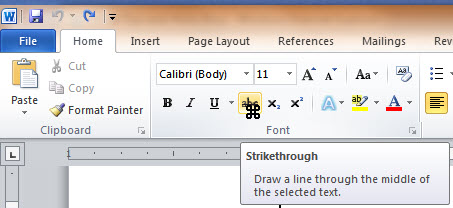 (It works the same way in 2007+) See all Topics powerpoint <Doug Klippert@ 3:56 AM
Comments:
Post a Comment
|
